
Why is it so difficult to find a Mac planner that doesn’t feel like a clunky port of an iPhone app? I have spent the better part of a decade trying to answer that question, downloading and deleting dozens of tools that promised to organize my life but ended up cluttering my SSD instead. When you are sitting at a desk with a 27-inch monitor or a powerful MacBook Pro, you have different needs than when you are squinting at a phone screen. You need keyboard shortcuts. You need menu bar access. You need a layout that respects the screen real estate you paid for.
The search for the best planner on Mac isn’t just about finding a calendar; it is about finding a central nervous system for your professional and personal commitments. After years of bouncing between minimalist task managers and bloated project management suites, I have realized that the right choice depends entirely on how your brain processes time. Some of us see the day as a series of blocks, while others see it as a narrative of notes. I’ve broken down the current landscape based on real-world testing and daily friction points that only a Mac power user would notice.
Which Mac planner apps offer the best native macOS experience?
If you are someone who values the specific aesthetic and functional language of macOS, you probably recoil at the sight of Electron apps—those web-based shells that hog RAM and feel sluggish. A native app feels snappy, supports system-wide features like Drag and Drop, and integrates deeply with the menu bar. For years, the gold standard here has been Fantastical by Flexibits.
Fantastical is often cited as the premier calendar and planner for the Mac, and for good reason. It isn’t just about the beautiful UI; it is about the natural language parsing. I can type “Lunch with Sarah at 1 PM at Blue Bottle” and the app intelligently creates the event, adds the location, and sets a reminder. It currently costs approximately $56.99 per year for a family plan or roughly $6.99 monthly for individuals. The biggest pro is the Calendar Sets feature, which allows you to toggle between “Work” and “Home” views with a single click or based on your location. The downside? The subscription price is a bitter pill for many, especially since it moved away from a one-time purchase model.
If you want power without the subscription fatigue, BusyCal remains a formidable rival. It looks a bit more utilitarian—think 2010s software design—but its customization is unmatched. You can view your planner in a list, week, month, or even a year view that actually makes sense. It costs about $49.99 as a one-time purchase. The pro is its Info Panel, which lets you edit event details without opening a separate window. The con is that it lacks the modern, polished feel of its competitors, which might bother you if you care about your workspace’s visual harmony.
Comparison of Native Mac Planning Features
| App Name | Price (Approx.) | Top Pro | Top Con |
|---|---|---|---|
| Fantastical | $56.99/year | Natural language parsing | Expensive subscription |
| BusyCal | $49.99 (One-time) | Deep customization | Dated user interface |
| Things 3 | $49.99 (One-time) | Minimalist perfection | No calendar event creation |
How do specialized productivity planners like NotePlan and Agenda compare?

There is a growing movement toward “bullet journaling” for the digital age, where your planner is essentially a series of notes linked to a calendar. This is where NotePlan shines. I started using NotePlan about two years ago when I realized that a simple list of tasks wasn’t enough context for my meetings. NotePlan uses Markdown, which is a dream for anyone who likes to keep their hands on the keyboard. It costs $9.99 per month or $99.99 per year, though it is also available via the Setapp subscription.
The genius of NotePlan is the Daily Note. Every day gets a fresh page. You can write your thoughts, jot down meeting minutes, and sprinkle in tasks using simple syntax like “- [ ] Check the quarterly report.” These tasks then show up in your calendar sidebar. The primary benefit is that your planning and your doing happen in the same window. The drawback is the learning curve; if you aren’t familiar with Markdown or the concept of “backlinking,” you might feel lost for the first few days.
Agenda takes a slightly different approach. It is date-focused but feels more like a traditional notebook. It uses a unique pricing model where you pay for the current features ($34.99 per year) and keep them forever, but you only get new updates if you renew. It’s a fair middle ground. Agenda is excellent for project-based planning. If you are a manager who needs to track notes across multiple meetings for a specific product launch, Agenda’s timeline view is superior to almost anything else. However, it lacks the robust task management features found in NotePlan; it’s a note-taker first and a planner second.
What are the top visual and aesthetic planners for Mac users?
Not everyone wants a clinical, data-heavy interface. Some users miss the tactile feel of a paper planner—the stickers, the colors, and the sense of layout. Artful Agenda is the closest you can get to a physical paper planner on a Mac. It is a web-wrapped app, which usually I’d complain about, but for this specific niche, it works. It replicates the look of brands like Erin Condren or Happy Planner, complete with digital stickers and handwriting-style fonts. It costs about $45 per year. The pro is clearly the emotional satisfaction of the layout. The con is that it lacks deep integration with macOS features like Shortcuts or advanced widgets.
Then there is Notion. While not a dedicated planner, Notion has become the default for people who want to build their own aesthetic system. I have seen Notion setups that look like high-end fashion magazines. You can find or buy templates for $5 to $50 that transform the app into a comprehensive life organizer. The flexibility is its greatest strength. You can have a gallery view of your goals, a database for your habits, and a linked calendar for your tasks. But be warned: the “Notion rabbit hole” is real. You can easily spend four hours designing your planner instead of actually planning your day. It is free for personal use, but the complexity can be a massive distraction.
Keep in mind that an aesthetic planner is only useful if it doesn’t become a form of productive procrastination. If you spend more time choosing a cover photo for your daily page than you do working, it might be time to switch to a more restrictive tool.
How to choose between a dedicated app and a browser-based planner?

This is a debate I see constantly on productivity forums. Browser-based planners like Sunsama or Akiflow are incredibly popular right now because they act as an “orchestrator.” They pull in tasks from Trello, emails from Gmail, and Slack messages, turning them into a unified daily schedule. Sunsama, specifically, costs about $20 per month. It is designed to prevent burnout by forcing you to be realistic about your time. It’s an incredible tool for people who work in heavy “stack” environments where tasks are scattered everywhere.
However, the downside of these browser-based tools on a Mac is the lack of offline reliability and the high cost. If you are on a plane or have a spotty connection, a native app like Things 3 will always outperform a web app. Things 3 is arguably the most beautiful app ever designed for the Mac. It costs $49.99 for the Mac version (separate purchases for iPhone and iPad). It doesn’t have a calendar in the traditional sense, but it overlays your calendar events into your task list. It is the “quietest” planner you can find. No notifications nagging you, no complex databases—just a clean list of what you need to do today.
I personally find that for deep work, native apps are better. They don’t have the latency of a web page refreshing. They respond to Mac-specific gestures. If you are the type of person who keeps 50 tabs open in Chrome, adding your planner as the 51st tab is a recipe for losing focus. Having a dedicated icon in your Dock creates a mental boundary between “the internet” and “my plan.”
Which Mac planners provide the best integration with Apple Ecosystem features?
If you are fully immersed in the Apple ecosystem—using an iPhone, iPad, and Apple Watch alongside your Mac—you want a planner that doesn’t fight against iCloud. Sorted³ is a hidden gem in this category. It uses a concept called “Auto-schedule,” which takes your list of tasks and your calendar events and automatically fits them into your day. It’s available as a one-time purchase of around $24.99 for the Pro features. It uses iCloud for everything, meaning there is no third-party server to worry about. The sync is nearly instantaneous.
Another heavy hitter for ecosystem integration is OmniFocus. This is the “nuclear option” for planners. It is built on the Getting Things Done (GTD) philosophy and is incredibly complex. It supports AppleScript, deep Shortcuts integration, and has some of the best Mac widgets available. OmniFocus 4 recently launched with a unified UI across all platforms. It’s expensive—around $9.99/month or $149 for a one-time purchase—but for a professional who needs to track 500+ active tasks across 20 projects, nothing else on macOS comes close. The con is that it is often “too much” for the average user, leading to a feeling of being overwhelmed by your own productivity system.
Ecosystem Integration Scorecard
- Apple Reminders Sync: GoodTask, Fantastical, and BusyCal lead here. They don’t just sync; they enhance the Reminders experience.
- Shortcuts Support: Things 3 and OmniFocus have the most robust action libraries for automation.
- Menu Bar Access: Fantastical’s mini-window is the industry standard, but Itsycal (free) is a great minimalist alternative for quick planning.
- Handoff: Most native apps support this, allowing you to start a plan on your Mac and finish it on your iPhone seamlessly.
What is the best free or budget-friendly planner for Mac in 2024?
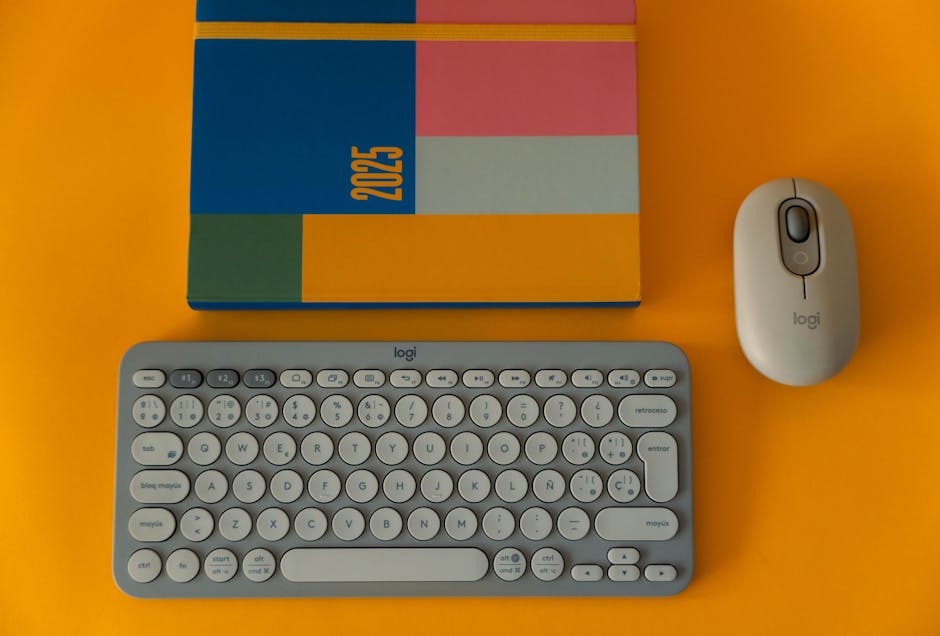
You don’t always have to spend $50 or a monthly subscription fee to stay organized. In fact, many people overlook the power of the tools already sitting in their Applications folder. The combination of Apple Calendar and Apple Reminders has improved drastically with the latest macOS updates. With the ability to create tags in Reminders and see your tasks in a list or column view, it has become a legitimate planner. It costs exactly $0. The pro is the system-level integration; the con is that it lacks a “daily view” that merges notes and tasks effectively.
If you want something slightly more structured but still free, TickTick is an excellent choice. While it has a premium tier ($27.99/year), the free version is surprisingly generous. It includes a calendar view, habit tracker, and a Pomodoro timer. It’s a great “all-in-one” for students or those just starting their productivity journey. The Mac app is well-optimized and supports global keyboard shortcuts for quick task entry.
Finally, don’t sleep on Freeform. If you are a visual planner who likes to mind-map your week, Apple’s Freeform app is a giant infinite canvas. You can drag in PDFs, links, and photos to build a visual representation of your month. It’s not a traditional planner, but for creative professionals, it can be far more effective than a rigid grid. I’ve found that using Freeform for high-level “big picture” planning and Things 3 for the daily execution is a powerful, low-cost combination that covers all the bases without requiring a recurring subscription that eats into your coffee budget.
Final Recommendations for Different User Styles
| User Type | Recommended App | Reasoning |
|---|---|---|
| The Executive | Fantastical | Superior scheduling and professional UI. |
| The Writer/Researcher | NotePlan | Merges long-form notes with calendar dates. |
| The Minimalist | Things 3 | Eliminates clutter and focuses on the next step. |
| The Power User | OmniFocus | Handles extreme task volume and automation. |
| The Visual Thinker | Artful Agenda | Replicates the joy of paper planning digitally. |
Ultimately, the best planner on Mac is the one you actually keep open. For me, that turned out to be NotePlan because I couldn’t stand having my notes in one app and my calendar in another. But if you just want something that looks beautiful and stays out of your way, Things 3 is the pinnacle of Mac software design. Start by identifying your biggest friction point: is it scheduling meetings, forgetting small tasks, or losing track of project notes? Once you know that, the choice becomes much clearer. The Mac platform offers the best productivity software in the world; you just have to find the piece that fits your specific puzzle.