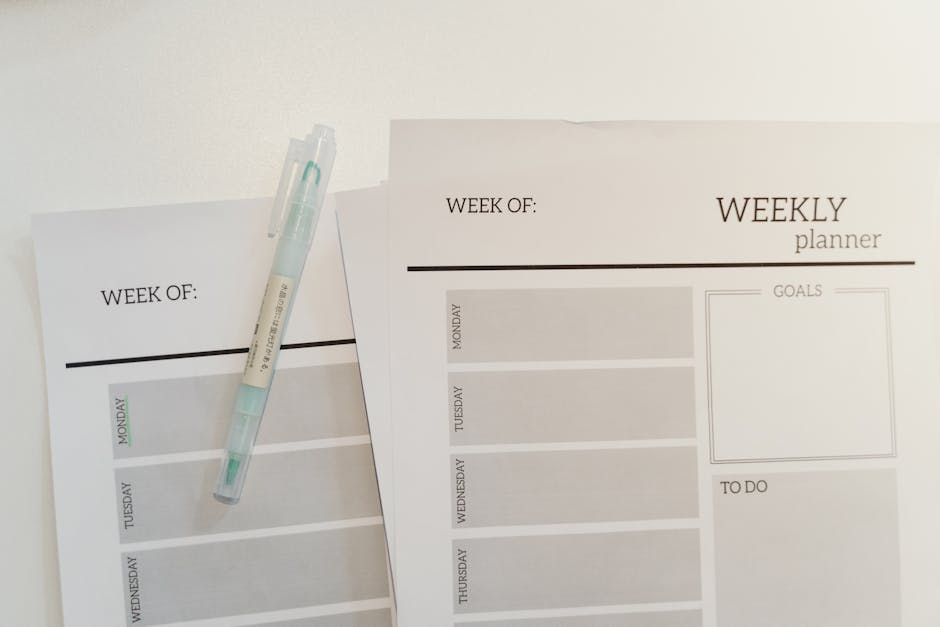
Only 8% of people consistently achieve their New Year’s resolutions, according to a recent study. Often, the tools they use are the problem. Many digital planners promise simplicity but deliver complex, restrictive systems. For those seeking genuine control over their schedules and goals, the answer often lies in a surprisingly powerful, yet overlooked, platform: Microsoft Excel.
Why Most Digital Planners Fall Short for Serious Users
Modern apps boast sleek interfaces and automated reminders. Yet, many users find themselves quickly hitting a wall. These planners are designed for a specific workflow, not yours. They lack true flexibility. You are forced into someone else’s idea of planning, which rarely aligns with personal or professional demands.
Excel, by contrast, offers a blank canvas. It provides the freedom to build exactly what you need, without limitations. You dictate the categories, the formulas, and the visuals. This level of customization is crucial for a planning system that genuinely adapts to your life, not the other way around.
The Overwhelm of Feature Bloat
Many apps pack in features you will never use. Task dependencies, Gantt charts, complex integrations – all sound impressive. In reality, they create visual clutter. This cognitive load detracts from the core purpose: planning and execution. A simple, focused spreadsheet planner avoids this distraction. It keeps your attention on what matters: your tasks, your deadlines, your progress.
Limits of Pre-Built Systems
Pre-built digital planners often force a specific methodology. If you prefer time blocking, but the app emphasizes task lists, you’re out of luck. If your project has a unique tracking requirement, the app probably cannot handle it. Excel allows hybrid approaches. Combine time blocking with task lists, financial tracking, and habit monitoring – all within one dynamic workbook. This adaptability makes it superior for diverse planning needs.
Essential Criteria for a Powerful Excel Planner

Choosing or building an effective Excel planner requires focusing on core functionalities. These are the elements that drive real productivity, not just aesthetic appeal.
-
Flexible Structure and Customization
Your planner must adapt. Look for templates that allow easy modification of columns, rows, and categories. The ability to add new sheets for specific projects, create custom dashboards, or integrate external data sources like financial transactions is key. A rigid structure will quickly become a liability, forcing you to work around its limitations rather than with them. Think about how easily you can add a new section for ‘Weekly Goals’ or ‘Health Tracking’ without breaking existing formulas.
-
Data Validation and Error Prevention
A good planner minimizes mistakes. Effective Excel planners incorporate data validation rules. These prevent incorrect entries, ensuring your data remains clean and useful. Drop-down lists for task status (e.g., ‘To Do’, ‘In Progress’, ‘Done’), numerical input restrictions for hours worked, or date range validations are simple examples. Conditional formatting also plays a role here, highlighting overdue tasks or approaching deadlines automatically. This reduces manual checks and improves data integrity.
-
Ease of Data Entry and Review
A planner is only useful if you actually use it. Complex input methods discourage daily engagement. Seek planners with clear, intuitive layouts for adding tasks, deadlines, and notes. Dashboards that summarize progress at a glance are also critical for quick review. Charts, progress bars, and pivot tables transform raw data into actionable insights, allowing you to identify bottlenecks or celebrate achievements without extensive manual calculation. The simpler the input, the more consistent your planning will be.
Common Mistakes to Avoid When Building Your Own
Many users jump into building a custom Excel planner with enthusiasm, only to get bogged down. These pitfalls can turn a productivity tool into a frustrating time sink. Avoid them by approaching your build strategically and pragmatically.
One common error is trying to recreate an existing complex software within Excel. Excel is powerful, but it’s not a database or a fully-fledged project management suite. Attempting to build a highly interconnected system with hundreds of formulas and macros often leads to errors, slow performance, and a spreadsheet that’s impossible to maintain. Focus on core planning functionalities rather than replicating every feature of a dedicated app. For example, a simple task list with due dates and status updates is highly effective. Adding intricate dependencies for every sub-task, while technically possible, becomes cumbersome quickly.
Over-complicating Formulas
Excel’s formula capabilities are vast, but restraint is vital. Overly complex nested formulas are difficult to debug and update. Start simple. Use SUM, AVERAGE, COUNTIF, and basic logical functions like IF. For more advanced needs, consider helper columns rather than trying to cram everything into one giant formula. For instance, calculating elapsed time for a task could involve a simple subtraction formula in one column and then a conditional formatting rule based on that result, rather than a single, monstrous formula that handles everything. Keep each formula’s purpose clear and isolated. This makes future adjustments far easier and reduces the chance of accidental errors breaking your entire system.
Neglecting Mobile Accessibility
While Excel on a desktop offers the best experience, modern planning requires some mobile access. Many users forget to optimize their spreadsheets for viewing or light editing on a phone or tablet. This doesn’t mean building a completely separate mobile interface. It means designing your main sheets with mobile in mind. Use larger fonts, avoid excessive columns that require constant horizontal scrolling, and ensure critical information is visible without zooming. Google Sheets, which is largely compatible with Excel files, offers superior mobile editing capabilities compared to the Excel mobile app for complex workbooks. Consider cloud storage like OneDrive or Google Drive to sync your files, allowing access from any device. This ensures you can check your tasks or update status even when away from your primary workstation.
Forgetting Regular Backups
A custom planner represents a significant investment of your time and effort. Losing it due to a corrupted file or accidental deletion is devastating. Many users neglect a robust backup strategy. Relying solely on local file saves is risky. Implement automated cloud backups (e.g., OneDrive, Dropbox, Google Drive). Configure version history, which allows you to revert to previous saves. Regularly save copies of your workbook with date stamps (e.g., MyPlanner_2026-03-15.xlsx). This ensures that even if your primary file becomes unusable, you can recover most of your data. This simple step protects your valuable planning system.
Top Free Excel Planner Templates for Immediate Use

You don’t need to start from scratch. Several excellent free templates provide a solid foundation for your planning efforts. These come with pre-built structures and basic functionalities, saving you significant time.
| Template Name | Source | Primary Focus | Key Features |
|---|---|---|---|
| Weekly Schedule Template | Microsoft Office Templates | Time Blocking, Daily Tasks | Hourly breakdown, customizable time slots, simple print layout. Excellent for students or those with fixed schedules. |
| Daily Planner Template | Vertex42 | Daily Task Management, Appointments | Prioritization section, hourly schedule, notes area. Good for focused daily work. |
| Project Task List Template | Smartsheet | Project Management, Task Tracking | Task ID, owner, due date, status, priority. Includes simple Gantt chart visualization. Ideal for team projects. |
| Budget Planner | Microsoft Office Templates | Personal Finance, Income/Expense Tracking | Categorized spending, income logging, summary charts. Crucial for financial planners. |
Microsoft’s Official Weekly Schedule
This template is straightforward. It offers a clear, hourly breakdown for each day of the week. You can easily input appointments, meetings, and dedicated work blocks. Its strength lies in its simplicity and directness, making it excellent for visual time management. It avoids clutter, focusing purely on your schedule.
Vertex42’s Daily Planner
Vertex42 provides a range of useful Excel templates. Their Daily Planner stands out for its emphasis on prioritization. It allows you to list top tasks, alongside a more detailed hourly schedule. This combination helps ensure high-priority items are addressed first. It’s a robust option for individuals needing a structured daily routine.
Smartsheet’s Project Task List
While Smartsheet is a separate platform, they offer a downloadable Excel Project Task List. This template is geared towards project managers or anyone handling multiple sub-tasks within a larger goal. It includes columns for assignment, due dates, and progress. It even provides a basic visual timeline, which is helpful for seeing project scope at a glance.
Elevating Your Planning with Premium Excel Integrations
For serious users, investing in premium Excel add-ins or specialized templates offers significant advantages that free options cannot match. These tools transform Excel from a basic spreadsheet into a highly sophisticated planning and analysis engine. The key is seamless integration and enhanced functionality that directly addresses specific, complex needs.
While the core of Excel remains free, certain challenges – like integrating live financial data or generating complex project timelines – are best handled by purpose-built solutions. These premium options leverage Excel’s power while adding layers of automation, advanced visualization, and external data connectivity. They save countless hours of manual data entry and formula creation, allowing you to focus on analysis and execution.
Tiller Money for Financial Goal Tracking
Tiller Money stands out for financial planning. It’s not strictly an Excel add-in but integrates seamlessly. Tiller automatically imports your bank, credit card, and investment data directly into Google Sheets or Excel via a CSV export. This means your personalized budget, expense tracker, and net worth calculations are always up-to-date. You build your own financial planning dashboards within Excel, powered by live data. This eliminates manual data entry, a huge time saver for anyone serious about financial goals. It provides the raw, refreshed data, and you structure it exactly as you need it for budgeting, debt tracking, or investment monitoring.
Project Management Add-ins
For more complex project planning, dedicated Excel add-ins enhance capabilities beyond standard formulas. Solutions like the Gantt Chart Template from ProjectManager.com (often available as a downloadable Excel file) provide advanced scheduling and tracking. These templates often include conditional formatting for task progress, resource allocation fields, and automated timeline calculations. They allow for intricate project breakdown structures and visualize dependencies far more effectively than a basic spreadsheet. While some features require manual input, the pre-built logic and visual elements justify the cost for managing larger, multi-stakeholder projects. Think about managing multiple phases of a product launch or a large event.
Advanced Dashboard Templates
Many online marketplaces (like Envato Elements or specific Excel template providers) offer premium, pre-designed dashboard templates. These are not just basic planners; they are analytical tools. They often feature interactive charts, slicers, and complex PivotTable structures for deep dives into performance metrics, project statuses, or personal growth data. A common example would be a CEO Dashboard template that tracks KPIs across different departments, or a personal habit tracker that visualizes trends over months. These templates are built by Excel experts, offering sophisticated design and functionality that would take hundreds of hours to create from scratch. They provide instant, high-level overviews and drill-down capabilities essential for strategic planning and decision-making.
The Clear Verdict on Spreadsheet Planning

Excel, despite its age, remains the undisputed champion for highly customizable, adaptable planning. Its flexibility addresses the shortcomings of rigid apps. Building or utilizing a well-chosen template in Excel provides unparalleled control and insight into your tasks and goals. The initial statistic about failed resolutions highlights a critical need for effective tools. Excel delivers exactly that.
The Future is Integrated
The trend for Excel planners points towards greater integration. Expect more seamless connections with cloud services and potentially AI-driven insights. These will automate data gathering and offer predictive analysis for tasks and deadlines.
Your Data, Your Control
Ultimately, Excel ensures your data remains yours. You control its structure, its security, and its destiny. This autonomy is crucial for a planning system that truly serves your unique needs and evolves with you, empowering you to finally achieve those elusive resolutions.