Introduction
WooCommerce is a powerful e-commerce platform, but to reach a global audience, translating your store into multiple languages is essential. This guide explains how to effectively translate a WooCommerce store, covering plugins, manual translation, and best practices, with step-by-step instructions in both.
Why Translate Your WooCommerce Store?
Translating your WooCommerce store enhances user experience, builds trust, and increases sales by catering to customers in their native languages. A multilingual store can also improve SEO, making it easier for international customers to find your products.
Step 1: Choose a Multilingual Plugin
The easiest way to translate a WooCommerce store is by using a multilingual plugin. Popular options include WPML, Polylang, and Weglot. These plugins allow you to translate products, categories, checkout pages, and more.
Recommended Plugin: WPML
WPML (WordPress Multilingual Plugin) is a premium plugin widely used for WooCommerce translation. It supports automatic and manual translations and integrates seamlessly with WooCommerce.
Installation Steps:
- Purchase and Download WPML: Visit the WPML website, purchase the plugin, and download it.
- Install WPML: In your WordPress dashboard, go to Plugins > Add New > Upload Plugin, and upload the WPML zip file.
- Activate and Configure: Activate WPML and follow the setup wizard to select languages and configure translation settings.
Step 2: Translate Core WooCommerce Content
Once the plugin is set up, you can start translating key WooCommerce elements such as product descriptions, categories, and attributes.
Translating Products:
- Access Product Translation: In WPML, go to WooCommerce Multilingual > Products, select a product, and click the “+” icon to add translations for your chosen languages.
- Translate Content: Enter translations for the product title, description, and other fields. Save the changes.
- Sync Variations: Ensure product variations (e.g., sizes, colors) are also translated for consistency.
Translating Checkout and Cart Pages:
- Locate Pages: In WPML, go to String Translation to find strings related to the checkout and cart pages.
- Translate Strings: Search for terms like “Proceed to Checkout” or “Add to Cart” and provide translations.
Step 3: Manual Translation for Custom Content
For custom text (e.g., banners, buttons, or custom fields), you may need to manually translate strings that are not automatically detected by the plugin.
- Use String Translation: In WPML, go to WPML > String Translation, and scan for untranslated strings in your theme or plugins.
- Add Translations: Manually input translations for each string in the desired languages.
- Check Frontend: Preview the store to ensure translations appear correctly.
Step 4: Test and Optimize
After translating, thoroughly test your store to ensure a seamless experience for users in all languages.
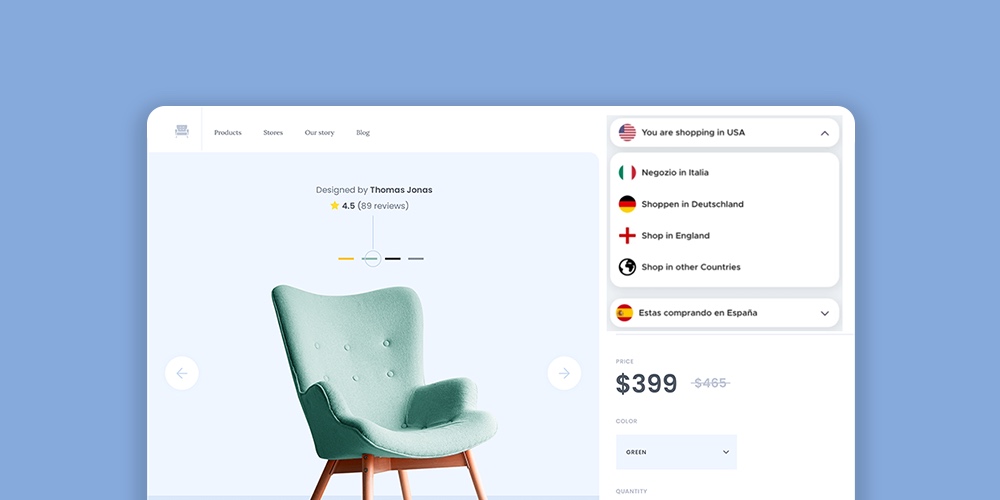
- Switch Languages: Use the language switcher to view the store in different languages and check for errors.
- Test Checkout Process: Complete a test purchase in each language to ensure the checkout process is fully translated.
- Optimize SEO: Use a plugin like Yoast SEO with WPML to optimize meta tags and URLs for each language.
Best Practices for a Multilingual WooCommerce Store
- Use Professional Translators: For high-quality translations, consider hiring professional translators for critical content like product descriptions.
- Maintain Consistency: Use a translation glossary to ensure consistent terminology across all languages.
- Regular Updates: Update translations whenever you add new products or update existing content.
- Monitor Performance: Use analytics to track how different language versions of your store perform.
Conclusion
Translating a WooCommerce store into multiple languages requires careful planning and the right tools. By using plugins like WPML, manually translating custom content, and following best practices, you can create a seamless shopping experience for a global audience. Start small, test thoroughly, and scale your translations as your store grows.
Leave a Reply